
A laptop is convenient because you can carry it almost anywhere, but working on a small screen with limited ports can become frustrating when you spend most of your day at a desk. Connecting an external monitor, keyboard, mouse, webcam and other accessories individually can quickly turn your workspace into a mess of cables. This is where a laptop docking station becomes useful.
For professionals exploring laptops online UAE, a docking station can be a practical addition to an existing setup. Instead of investing in a separate desktop computer, you can use your laptop as your primary device while enjoying the comfort and functionality of a complete workstation.
Whether you work from home, manage multiple applications in an office or regularly switch between meetings and desk-based tasks, understanding how docking stations work can help you build a more efficient workspace.
What Is a Laptop Docking Station?
A laptop docking station is a device that expands your laptop’s connectivity by allowing you to connect multiple peripherals through a single connection. Depending on the model, it can provide additional USB ports, monitor outputs, Ethernet connectivity, audio connections and power delivery.
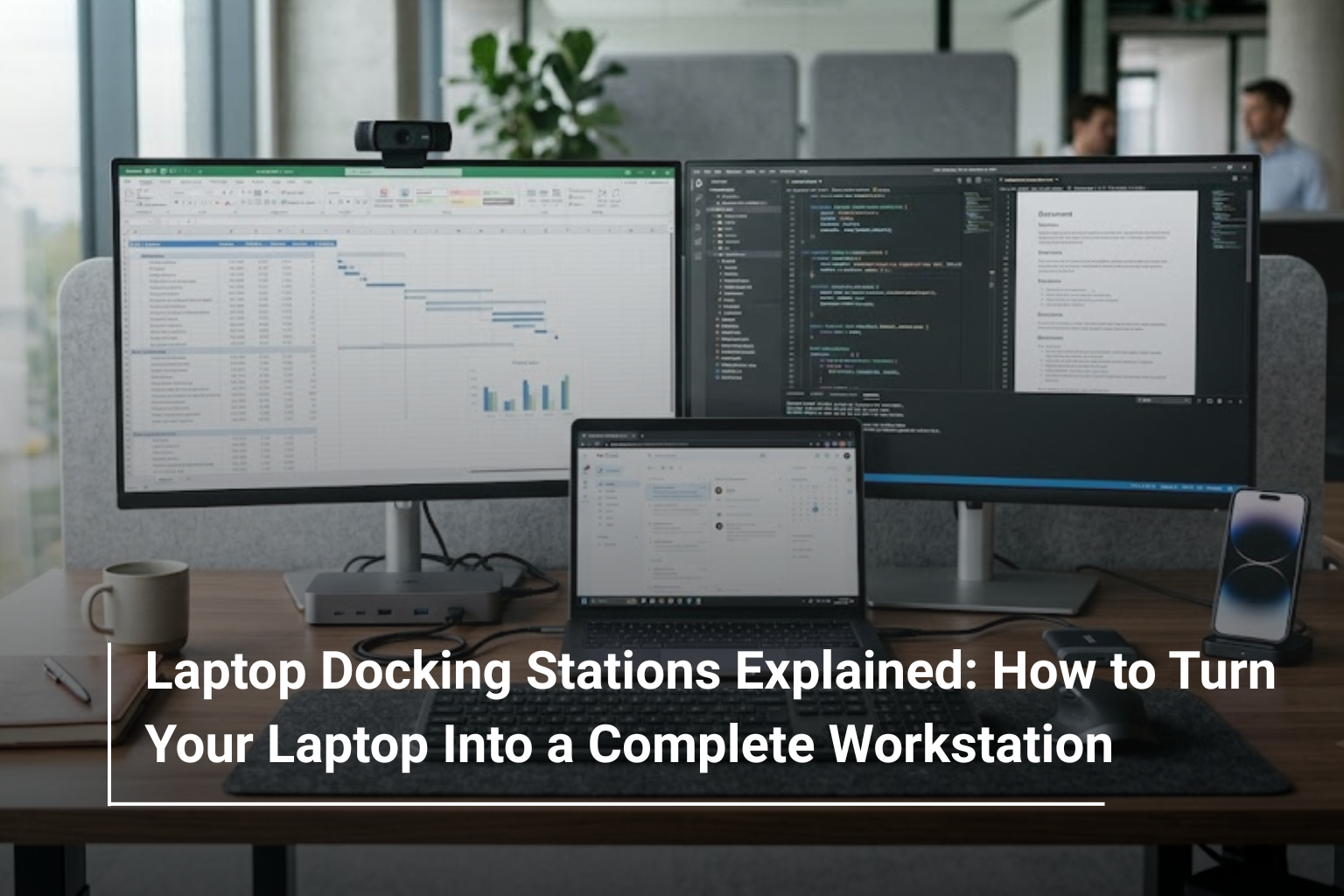
Think of it as a central hub for your desk. You connect your monitor, keyboard, mouse, external storage and other accessories to the docking station, then connect the dock to your laptop. When you sit down to work, most of your setup is ready to use without plugging in every accessory separately.
For example, someone using a laptop for spreadsheets, video conferences and browser-based applications could connect two monitors, a keyboard, a mouse and a wired internet connection through a compatible dock. When it is time to leave the office, disconnecting the laptop’s main cable can make packing up much easier.
It is important to understand that a docking station does not automatically make your laptop more powerful. Its main purpose is to improve connectivity, convenience and workspace organisation.
How Does a Laptop Docking Station Work?
A docking station acts as an extension of your laptop’s available ports. It receives data, video signals and, on supported models, power through its connection to the laptop.
Most modern docking stations connect through USB-C or Thunderbolt. Some basic models use USB-A, while certain manufacturers offer proprietary docking solutions for compatible business laptops.
The exact functionality depends on the laptop, dock and connection standard. A USB-C port, for instance, does not necessarily support video output or charging simply because it uses the same connector.
Before purchasing a dock, check whether your laptop supports the features you intend to use, including external displays, data transfer and USB-C Power Delivery.
Types of Laptop Docking Stations You Should Know
Not every docking station offers the same capabilities. Choosing the right type depends on your laptop, the number of accessories you use and how much connectivity your workstation requires.
Docking station type | Main features | Best suited for |
USB-C docking station | Multiple USB ports, display outputs and sometimes charging | Everyday office and home-office setups |
Thunderbolt docking station | High-bandwidth connectivity for supported displays and peripherals | Professionals working with demanding applications and multiple monitors |
USB-A docking station | Additional connectivity, often using display technology such as DisplayLink | Compatible laptops with limited modern ports |
Proprietary docking station | Designed for specific laptop families or connection systems | Compatible business laptops and established office setups |
For most people, a USB-C docking station is a sensible starting point. However, users working with high-resolution displays, several monitors or high-speed storage may benefit from a Thunderbolt dock if their laptop supports it.
What Can You Connect to a Laptop Docking Station?
One of the biggest advantages of a docking station is the ability to connect several devices without constantly switching cables.
A typical workstation might include:
- External monitors: Expand your workspace for spreadsheets, research, coding or content creation.
- Keyboard and mouse: Create a more comfortable desk setup for extended working hours.
- External SSDs and USB drives: Transfer files and access additional storage.
- Wired Ethernet: Use a stable wired network connection where available.
- Webcams and headsets: Improve video calls and online meetings.
- Printers and other USB accessories: Keep frequently used office equipment connected.
Some docking stations also support SD or microSD card readers, audio connections and charging for compatible devices.
If your work involves several applications open simultaneously, adding an external monitor can be particularly helpful. You could keep your email and meeting window on one screen while working on documents or reports on another.
Laptop Docking Station vs USB Hub: What’s the Difference?
USB hubs and docking stations are often used interchangeably, but they serve slightly different purposes.
A USB hub typically expands the number of available USB connections. It is useful when your laptop has only a few ports and you need to attach accessories such as a mouse, keyboard or flash drive.
A docking station generally offers a broader range of connectivity, potentially including multiple display outputs, Ethernet, audio and laptop charging. Some compact docks offer only a few of these features, so it is always worth checking the specifications.
Feature | USB hub | Docking station |
Additional USB ports | Yes | Yes |
External monitor support | Model dependent | Common on suitable models |
Ethernet connectivity | Available on selected models | Available on many models |
Laptop charging | Uncommon on basic hubs | Available on compatible models |
Full workstation setup | Limited in many cases | Better suited to this purpose |
If you only need a couple of extra USB ports, a hub may be enough. If your goal is to create a permanent desk setup with monitors, networking and several peripherals, a docking station is usually the more practical option.
USB-C vs Thunderbolt: Which Dock Should You Choose?
The connection standard is one of the most important factors when selecting a docking station.
USB-C describes the physical connector, while USB and Thunderbolt standards determine the supported data, display and other capabilities. Two laptops with identical USB-C ports may not support the same docking features.
USB-C docking stations can be suitable for everyday office work, remote working and general productivity. They are often sufficient for connecting a monitor, keyboard, mouse and network accessories.
Thunderbolt docks are worth considering when you need greater bandwidth for supported displays, fast external storage and several connected devices. However, the benefits depend on the Thunderbolt version and the capabilities of both the dock and laptop.
Before buying, verify the following:
- Whether your laptop supports USB-C video output, DisplayPort Alt Mode or Thunderbolt.
- The maximum supported monitor resolution and refresh rate.
- How many external displays your laptop can run simultaneously.
- Whether the dock provides enough charging power for your laptop.
This compatibility check can prevent problems such as a monitor not displaying an image or a laptop charging more slowly than expected.
Can a Docking Station Support Two or More Monitors?
Yes, many docking stations support multiple external monitors, but the number you can use depends on the entire setup rather than the dock alone.
Your laptop’s graphics hardware, operating system, port capabilities and display-output configuration all affect the result. Some laptops support multiple external monitors through a compatible Thunderbolt dock, while others have more restrictive display limits.
For example, an office professional might use one external monitor for spreadsheets and another for communication tools. A developer could keep code open on one display and documentation on another, while a content creator might use a larger external screen for editing.
When comparing docks, check the supported resolution and refresh rate for each display. A dock advertised as supporting two monitors may offer different combinations of resolutions depending on the connection standard and the laptop being used.
If a dock uses DisplayLink technology, additional software may be required, and compatibility can vary by operating system and application. It is worth checking these requirements before making a purchase.
Does a Laptop Docking Station Charge Your Laptop?
Many modern docking stations can charge a laptop through USB-C Power Delivery or a supported Thunderbolt connection. This allows a single cable to carry data, display signals and power, reducing the number of cables on your desk.
However, not every dock supplies enough power for every laptop.
A lightweight business notebook may work comfortably with a lower-power dock, while a high-performance workstation or gaming laptop may require a much more powerful adapter. Some gaming laptops also need their original power supply to deliver maximum performance, even when connected to a dock.
Check the dock’s maximum power output and your laptop’s recommended charging requirements. If the dock cannot provide sufficient power, your laptop may charge slowly or continue using its own charger.
Who Should Invest in a Laptop Docking Station?
A docking station is particularly useful for people who regularly use their laptops at a fixed workstation.
Office professionals: Connecting monitors, a keyboard, a mouse and Ethernet through one dock can make daily work more convenient.
Remote workers: A dedicated home-office setup can reduce cable clutter and make it easier to switch between focused work and meetings.
Students: Those who use an external monitor for research, assignments or programming may find a dock useful when working from a study desk.
Developers and content creators: Multiple displays and fast external storage can help organise complex workflows, provided the laptop and dock support the required configuration.
Frequent travellers: A compact docking station can be convenient if you move between a home office and a workplace with a permanent monitor setup.
On the other hand, if you primarily use your laptop on the move and rarely connect external accessories, you may not need a docking station at all.
How to Choose the Right Laptop Docking Station
Before buying, focus on compatibility and the devices you actually plan to connect. A dock with dozens of ports is not necessarily the best choice if your laptop cannot use its main features.
What to check | Why it matters |
Laptop compatibility | Confirms that the dock works with your device |
USB-C or Thunderbolt support | Determines available data, video and charging features |
Number of display outputs | Helps you plan a single- or multi-monitor setup |
Power delivery | Ensures suitable charging for your laptop |
USB port availability | Accommodates keyboards, storage and other peripherals |
Ethernet and audio | Useful for office networking and communication |
Operating system support | Helps avoid driver or compatibility issues |
Size and build quality | Important if you frequently carry the dock |
It is also worth checking whether the docking station comes with its own power adapter and the cables required for your setup. Some models are designed to use a separate power supply, while others are intended for simpler, lower-power configurations.
If you are still choosing your primary computer, browse the available laptops in the UAE and compare their connectivity options before investing in additional accessories. A laptop with the right USB-C or Thunderbolt support can make building a workstation much simpler.
Common Mistakes to Avoid When Buying a Dock
One common mistake is assuming that every USB-C port supports charging and external displays. The connector may look identical, but its capabilities can differ significantly between laptop models.
Another is buying a dock based only on the number of ports. If you need two high-resolution monitors, confirm the supported display configuration rather than relying on a general compatibility claim.
You should also avoid overlooking power requirements. A dock that works perfectly with a standard office laptop may not deliver enough power for a more demanding system.
Finally, consider your future requirements. If you expect to add another monitor or faster external storage later, choosing a dock with suitable connectivity from the beginning may save you from replacing it too soon.
Turn Your Laptop Into a Complete Workstation
A laptop docking station can make everyday computing more comfortable by bringing your monitors, accessories, networking and charging together in one organised setup. For professionals who move between mobile work and a permanent desk, it offers many of the conveniences of a desktop workstation without giving up the portability of a laptop.
The right choice depends on your laptop’s compatibility, the number of displays you need and the peripherals you use regularly. A simple USB-C dock may be enough for everyday office tasks, while a compatible Thunderbolt solution can better suit more demanding multi-monitor environments.
Explore Your Computing Options at AL Lavisha Computers
Building a productive workstation starts with choosing a laptop that matches your workload and offers the connectivity you need. At AL Lavisha Computers, you can explore computing solutions from brands such as Dell, HP, Lenovo, ASUS, Acer and MSI, whether you need a dependable business notebook, a portable everyday laptop or a high-performance machine for demanding applications. Compare the specifications, connectivity options and configurations available to find a laptop that works well with your desk setup today and gives you room to expand your workstation in the future.