
Buying a laptop is a long-term investment, but your needs can change over time. You might start using more demanding software, run multiple applications simultaneously or find that your storage is filling up faster than expected. Instead of replacing the entire device, you may be able to improve its performance by upgrading a few internal components.
The good news is that many laptops support hardware upgrades after purchase. Depending on the model, you may be able to add more RAM, install a larger SSD, improve wireless connectivity or replace certain other components. However, not every laptop offers the same flexibility, particularly newer thin-and-light models with soldered components.
If you are planning to buy laptops online UAE, understanding upgrade options before making a purchase can help you choose a device that meets your current requirements while leaving room for future improvements. Let’s explore which laptop components can be upgraded, what to check before getting started and when an upgrade is actually worth the investment.
Can You Upgrade a Laptop After Buying It?
Yes, you can upgrade certain laptop components after buying the device, but the available options depend on its design, hardware configuration and manufacturer specifications.
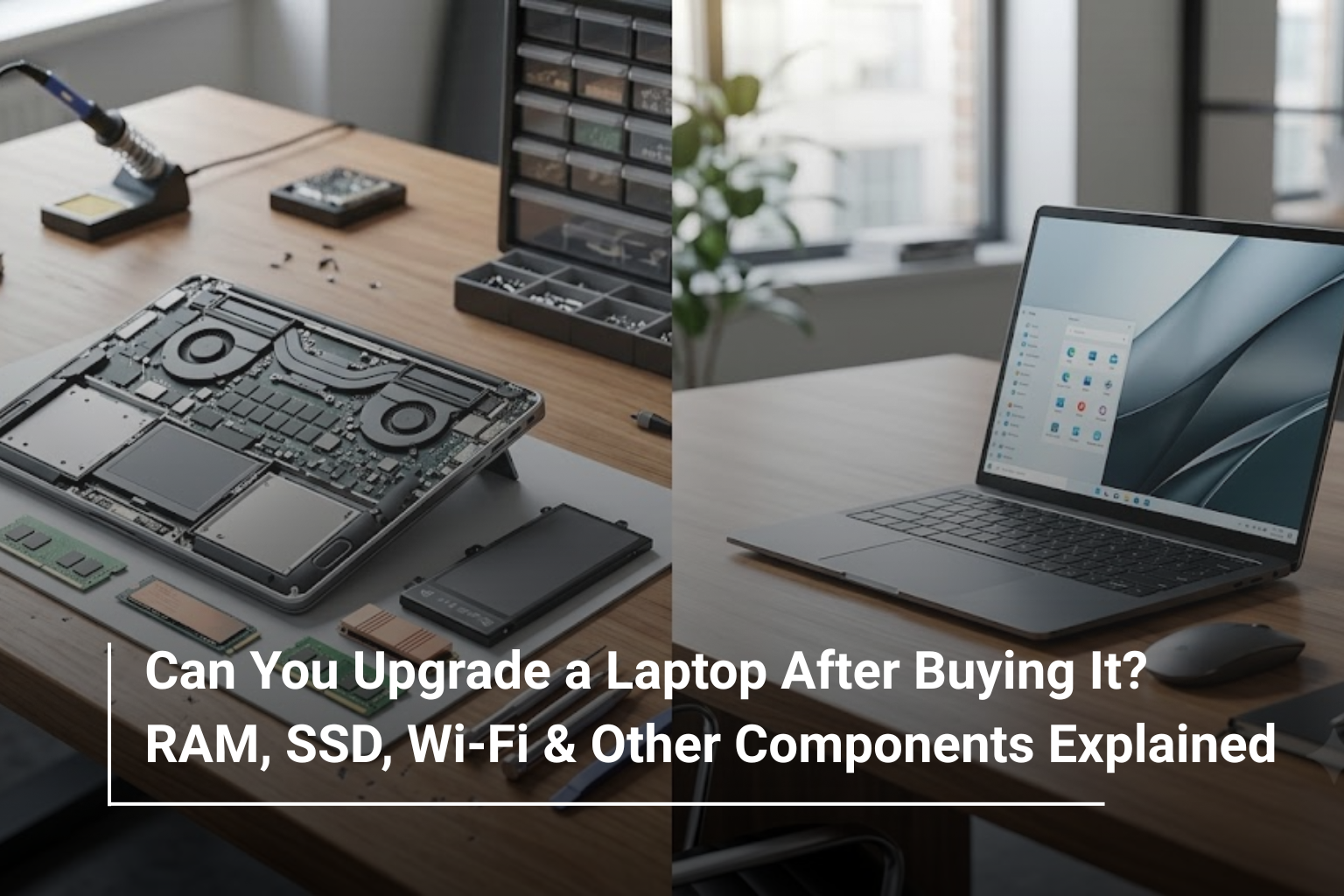
Traditional laptops with accessible internal components generally offer more upgrade flexibility than ultra-thin notebooks. Some models include removable RAM modules, replaceable SSDs and accessible wireless cards, while others have these components soldered directly to the motherboard.
Before purchasing a laptop, it is worth checking whether its memory and storage can be upgraded. This is especially important if you plan to use the device for several years or expect your workload to become more demanding.
Common laptop upgrades include:
- RAM: Helps with multitasking and memory-intensive applications.
- SSD: Increases storage capacity and can improve loading times.
- Wi-Fi card: May improve wireless compatibility or connectivity features.
- Battery: Can restore some of the original battery life when the existing battery has deteriorated.
- Cooling components: Fans may be replaceable on supported models if they become noisy or stop working properly.
Not every component is user-replaceable, so checking the exact laptop model is the first step.
1. Can You Upgrade Laptop RAM?
RAM is one of the most useful components to consider when evaluating laptop upgrade options. It temporarily stores the data your computer needs while running applications, keeping multiple programs accessible without repeatedly loading everything from storage.
If your laptop slows down when you open several browser tabs, attend video meetings or work with large files, insufficient RAM could be contributing to the problem.
For example, upgrading from 8GB to 16GB of RAM can make multitasking more comfortable for many everyday users. People working with virtual machines, large datasets, video editing software or other memory-intensive applications may benefit from 32GB or more, depending on their workload.
However, more RAM does not automatically make every laptop faster. If the processor is outdated or the system is already running comfortably within its memory capacity, the improvement may be limited.
What should you check before upgrading RAM?
First, find out whether your laptop has removable memory modules or soldered RAM. Some models have one accessible slot, while others have two slots or a combination of soldered memory and an expansion slot. Certain thin laptops have no upgradeable RAM at all.
You should also verify the supported memory generation, maximum capacity, compatible speeds and module configuration. DDR4 and DDR5 memory, for example, are not interchangeable.
If you are buying a new notebook for office work, studying or general multitasking, choosing a model with 16GB of RAM can be a sensible starting point. For more demanding workloads, compare higher-memory configurations before deciding whether a future upgrade will be necessary.
2. Can You Upgrade a Laptop SSD?
In many laptops, the SSD is one of the easiest and most practical components to upgrade. If your current drive is nearly full or you need additional room for software, projects, games, photos and videos, replacing it with a higher-capacity drive can extend the useful life of your device.
An SSD upgrade may also improve responsiveness when moving from an older mechanical hard drive to a compatible solid-state drive. However, if your laptop already uses a fast SSD, replacing it with another SSD will not necessarily produce a dramatic speed improvement.
For most modern laptops, an M.2 NVMe SSD is a common storage option, but compatibility varies. Some systems use SATA storage, and not every M.2 slot supports the same interface or drive dimensions.
Before purchasing a replacement, check:
- The supported SSD interface, such as NVMe or SATA.
- The physical form factor and dimensions.
- The maximum supported storage capacity, if specified.
- Whether an additional SSD slot is available.
- Whether you need to clone your existing drive or reinstall the operating system.
For instance, a laptop with a 512GB SSD may be suitable for everyday use, but users who store large video files, install multiple games or work with extensive design projects might prefer 1TB or 2TB of storage.
If you are comparing laptops with SSD storage, look beyond the advertised capacity and check whether the drive can be replaced or expanded later.
3. Can You Upgrade the Wi-Fi Card in a Laptop?
A laptop’s wireless connectivity can also be upgradeable, although this is less straightforward than replacing an SSD.
Some laptops have a removable wireless card that supports Wi-Fi and Bluetooth. If the existing card is outdated or faulty, replacing it with a compatible module may improve wireless capabilities or restore reliable connectivity.
However, you cannot assume that every Wi-Fi card will work with every laptop. Physical dimensions, interface compatibility, antenna connections, BIOS restrictions and manufacturer-specific configurations can affect whether a replacement is possible.
Newer laptops may use soldered wireless components, leaving no practical internal upgrade option.
Before replacing a wireless card, consider whether the problem is actually related to the hardware. Outdated drivers, router placement, interference or router settings can also cause slow or unstable Wi-Fi.
If the card cannot be replaced, a compatible external USB Wi-Fi adapter may provide an alternative. It is important to select one that supports your operating system and required wireless standards.
4. Can You Replace a Laptop Battery?
Yes, many laptops have replaceable batteries, but the process depends on the design.
Older laptops often feature removable batteries that can be replaced without opening the device. Most modern notebooks use internal batteries that require removing the bottom cover and disconnecting the battery from the motherboard.
If your laptop no longer lasts as long as it used to, replacing a worn battery may be more cost-effective than buying a new computer. Battery replacement can be particularly worthwhile when the processor, RAM and storage still meet your requirements.
Before ordering a replacement, confirm the exact laptop model and compatible battery part number. Battery capacity, connector type, dimensions and safety certification all matter.
It is also worth checking the battery’s condition through the operating system or the manufacturer’s diagnostic utility. Poor battery life can sometimes result from demanding applications, high screen brightness or background processes rather than battery deterioration alone.
For laptops still covered by warranty, check the manufacturer’s service conditions before arranging a replacement.
5. Can You Upgrade the Laptop Graphics Card or Processor?
This is where laptop upgrades become considerably more limited.
Unlike many desktop computers, most modern laptops have their CPU and integrated graphics soldered directly to the motherboard. Replacing these components is generally impractical because it requires specialised equipment, compatible motherboard designs and extensive technical work.
Dedicated laptop GPUs are also typically soldered to the motherboard rather than installed in a standard removable graphics card slot.
Some compatible laptops support external graphics solutions through suitable high-bandwidth ports and enclosures, but this option depends on the laptop’s connectivity, operating system, hardware support and budget. It is not a universal solution.
If you need significantly better gaming performance, advanced 3D rendering capabilities or faster processing for demanding applications, choosing the right hardware configuration at the time of purchase is usually the better approach.
For example, someone planning to run modern games or GPU-intensive creative software should compare dedicated graphics configurations from brands offering performance-focused models, rather than relying on a future internal GPU upgrade.
6. Which Laptop Components Can Be Upgraded?
The following table provides a general overview. The exact options depend on the laptop model and configuration.
Component | Upgrade Possibility | Main Consideration |
RAM | Common on some models | Check slots, memory type and maximum capacity |
SSD | Common on many models | Verify interface, size and compatibility |
Wi-Fi card | Possible on selected models | Check interface, antenna and BIOS support |
Battery | Possible on many models | Confirm the compatible replacement part |
Cooling fan | Possible on selected models | Requires a compatible replacement and careful installation |
Keyboard | Possible on selected models | Replacement difficulty varies by design |
Display | Possible on selected models | Check panel compatibility and connector type |
CPU | Generally not practical | Usually soldered to the motherboard |
Dedicated GPU | Generally not practical internally | Usually soldered to the motherboard |
RAM on soldered-memory laptops | No conventional upgrade | Memory capacity is fixed |
This is why checking upgradeability before buying a laptop can be just as important as comparing its processor and price.
7. Does Upgrading a Laptop Actually Improve Performance?
An upgrade can make a noticeable difference, but the result depends on the original limitation.
Consider a laptop that becomes sluggish whenever several applications are open. If memory usage is consistently high, adding compatible RAM may improve multitasking. If the storage drive is almost full, freeing up space or installing a larger SSD may help with everyday usability.
However, upgrading RAM will not automatically fix overheating, and installing a larger SSD will not transform an old processor into a high-performance one.
Here are a few common situations:
Your Problem | Upgrade or Solution to Consider |
Laptop struggles with multitasking | More RAM, if supported |
Storage is nearly full | Larger SSD or an additional drive |
Wi-Fi connection is unreliable | Diagnose the network, drivers and wireless card |
Battery drains quickly | Check battery health and consider replacement |
Laptop overheats | Clean the cooling system and check fan operation |
Games run slowly | Check GPU, CPU, RAM and graphics settings |
Laptop feels slow despite adequate hardware | Review software, startup apps, temperatures and drive health |
The best approach is to identify the actual cause of the problem before spending money on replacement parts.
8. Should You Upgrade Your Existing Laptop or Buy a New One?
The decision depends on the laptop’s age, current condition, upgrade options and the applications you need to run.
If your device still has a capable processor and meets your everyday requirements, adding RAM or replacing the SSD may be a sensible way to extend its lifespan. This can be particularly useful for office work, browsing, online learning and routine productivity.
On the other hand, replacing an ageing laptop may be more practical if its processor struggles with your software, the motherboard is faulty or several expensive components need attention.
Before committing to an upgrade, compare the combined cost of parts and professional installation with the price of a new laptop offering better performance, a fresh warranty and more modern connectivity.
Also remember that some laptops are designed to be upgraded more easily than others. Business notebooks and certain performance-oriented models may offer more accessible components, while premium thin-and-light devices often prioritise compact designs over internal expandability.
9. How to Choose a Laptop That Supports Future Upgrades
If you are buying a new laptop, it is worth thinking beyond your immediate requirements. A device that suits your workload today should ideally have enough capacity to handle changing needs over the next few years.
Before making a purchase, check these key details:
- Memory: Look for sufficient RAM for your applications and confirm whether it can be expanded.
- Storage: Choose an SSD capacity that suits your files and check whether the drive can be replaced or supplemented.
- Connectivity: Review Wi-Fi standards, USB ports, display outputs and other connections you regularly use.
- Battery: Consider battery capacity, replacement availability and warranty coverage.
- Build and serviceability: Check whether key components are accessible and whether authorised service is available.
- Performance: Choose a processor and graphics configuration that can handle your expected workload without depending on major future upgrades.
For everyday users, students and office professionals, these checks can help avoid paying for unnecessary performance while ensuring that the laptop remains practical over time.
If you are comparing business laptops for everyday productivity, prioritise a balanced configuration, reliable connectivity and sufficient memory and storage rather than focusing on a single specification.
Final Thoughts: Make Your Laptop Last Longer with the Right Upgrades
Upgrading a laptop after purchase can be an effective way to improve usability, add storage and extend the life of a device you already own. RAM and SSD upgrades are among the most practical options, while battery and Wi-Fi replacements depend on the model’s design and compatibility. Processor and graphics upgrades, however, are generally not realistic for conventional modern laptops.
The key is to understand what your laptop supports before purchasing components or opening the device. A well-chosen upgrade can save money, but investing in a laptop with the right specifications from the beginning can prevent unnecessary limitations later.
Explore Laptop Options at AL Lavisha Computers
At AL Lavisha Computers, finding the right laptop starts with understanding how you plan to use it, both now and in the future. Whether you need a dependable notebook for everyday tasks, a business laptop for demanding workloads or a performance-focused machine for creative applications and gaming, you can compare options from leading brands such as ASUS, Acer, Dell, HP, Lenovo and MSI. Explore the available laptop models at AL Lavisha Computers to compare specifications, storage capacities, memory configurations and features before making your choice. Selecting a suitable configuration from the outset can help you get better long-term value from your investment.