
When buying a new computer, most people spend time comparing processors, RAM, storage and graphics cards. However, the monitor deserves just as much attention. Whether you use a laptop for work or a desktop for gaming, the right display can make everyday tasks more comfortable, improve visual clarity and create a better overall computing experience.
With so many options available, choosing a monitor can feel confusing. Should you buy a Full HD or 4K display? Is a 24-inch monitor enough for office work? Do you really need a 144Hz refresh rate, or is 60Hz perfectly fine?
If you are exploring monitors in UAE, understanding these specifications before making a purchase can help you choose a display that suits your work, entertainment and budget. Let’s break down the most important factors to consider when buying a monitor for your laptop or desktop.
Why Does Choosing the Right Monitor Matter?
A monitor is more than just a screen. You may spend several hours every day reading documents, attending online meetings, editing images, watching videos or playing games. A display that matches your needs can make these activities more enjoyable and productive.
For example, someone working with spreadsheets may benefit from a larger screen that displays more information at once. A graphic designer might prioritise colour accuracy, while a gamer may care more about refresh rate and response time.
The best monitor is not necessarily the most expensive one. It is the one that offers the right combination of screen size, resolution, performance and connectivity for your everyday use.
1. Monitor Resolution: Full HD vs QHD vs 4K
Resolution refers to the number of pixels displayed on the screen. Generally, a higher resolution produces a sharper image, provided the screen size and viewing distance are appropriate.
The three resolutions you will commonly encounter are Full HD, QHD and 4K.
Resolution | Pixel Count | Best For |
Full HD (1080p) | 1920 × 1080 | Office work, browsing and everyday computing |
QHD (1440p) | 2560 × 1440 | Multitasking, gaming and creative work |
4K UHD | 3840 × 2160 | Detailed design work, video editing and high-resolution content |
Full HD monitors remain a practical choice for everyday tasks. A 24-inch Full HD display provides a useful balance between screen space, clarity and affordability, making it suitable for office setups, students and home users.
QHD monitors offer more workspace and sharper details than Full HD. They are particularly useful if you regularly keep multiple windows open, work with large spreadsheets or want a sharper gaming experience without moving to 4K.
4K monitors provide significantly more pixels and are worth considering for photo editing, video production, detailed design work and other tasks where fine visual detail matters. However, they generally cost more and can require stronger graphics hardware for gaming at native resolution.
Before choosing a high-resolution display, check whether your laptop or desktop supports the resolution and refresh rate you want through its available video outputs.
2. What Monitor Size Should You Choose?
Screen size is measured diagonally, usually in inches. The right size depends on your desk space, viewing distance and how much information you need on the screen.
A larger monitor can make multitasking easier, but size alone does not guarantee a better viewing experience. Resolution also matters because it determines how much detail can fit on the display.
Here is a quick guide to common monitor sizes:
Monitor Size | Ideal Use |
21.5–24 inches | Office tasks, studying and compact desks |
27 inches | Multitasking, gaming and general productivity |
32 inches | Large workspaces, immersive gaming and creative tasks |
34 inches or more | Ultrawide multitasking, editing and specialised setups |
For most home and office users, a 24-inch monitor is a sensible starting point. It fits comfortably on many desks and works well for browsing, email, documents and video calls.
If you regularly work across several applications, a 27-inch monitor can provide a more comfortable workspace. At this size, QHD resolution is a popular option because it offers a useful balance between sharpness and available screen space.
Larger displays can be excellent for video editing, complex spreadsheets and gaming, but make sure your desk has enough room and that you can sit at a comfortable viewing distance.
3. Refresh Rate: Is 60Hz Enough, or Should You Choose 144Hz?
Refresh rate describes how many times a monitor updates its image every second. It is measured in hertz (Hz).
A 60Hz monitor refreshes the image 60 times per second, while a 144Hz monitor can refresh it 144 times per second. Higher refresh rates can make movement appear smoother, particularly during gaming and fast-moving content.
Refresh Rate | Best Suited For |
60Hz | Documents, browsing, office work and general use |
75–100Hz | Everyday computing with smoother on-screen movement |
120–144Hz | Gaming, fast-paced content and responsive interaction |
165–240Hz or higher | Competitive gaming and high-frame-rate gameplay |
For everyday office work, a 60Hz monitor can still do the job perfectly well. If your main activities involve typing, spreadsheets, web browsing and video calls, you may get more value from investing in a better screen size or resolution.
For gaming, a 144Hz or faster display can offer a noticeably smoother experience. However, your computer must also be capable of producing enough frames per second to take full advantage of the monitor’s refresh rate.
If you are comparing gaming monitors, pay attention to response time as well. Refresh rate and response time are different specifications: refresh rate describes how often the screen updates, while response time measures how quickly pixels change between states.
4. Panel Types: IPS, VA and OLED Explained
The panel technology used in a monitor affects its colours, contrast, viewing angles and overall image quality.
IPS (In-Plane Switching) panels are popular for office work, general computing and creative applications. They typically offer consistent colours and wide viewing angles, making them useful when working with documents, images or multiple people viewing the screen.
VA (Vertical Alignment) panels generally provide stronger contrast than typical IPS displays. This can make darker scenes look deeper, which is useful for watching films and playing games in dimly lit rooms. Performance varies between models, particularly when it comes to pixel response times.
OLED (Organic Light-Emitting Diode) monitors can produce deep blacks and excellent contrast because individual pixels can switch off completely. They are attractive for premium gaming and creative work, although they usually cost more and require consideration of long-term image retention risks.
Your choice should depend on how you use the monitor. An IPS display may be a sensible all-rounder for a home office, while a VA or OLED model may appeal to someone prioritising contrast and immersive entertainment.
5. Laptop vs Desktop Monitor: What Should You Check?
The process of choosing a monitor is similar for laptop and desktop users, but connectivity deserves special attention.
A desktop computer may have HDMI, DisplayPort or other video outputs on its graphics card. Laptops commonly offer HDMI, USB-C or Thunderbolt connectivity, depending on the model.
Before buying, check the ports available on your device and confirm that they support your preferred monitor resolution and refresh rate.
For example, a laptop with USB-C may support video output through that port, but not every USB-C port supports display connectivity. Similarly, the maximum refresh rate available can depend on the port version, cable and graphics hardware.
If you want a cleaner desk setup, consider a monitor with USB-C connectivity that supports video and laptop charging. Some models also include USB hubs, allowing compatible accessories to connect directly to the display.
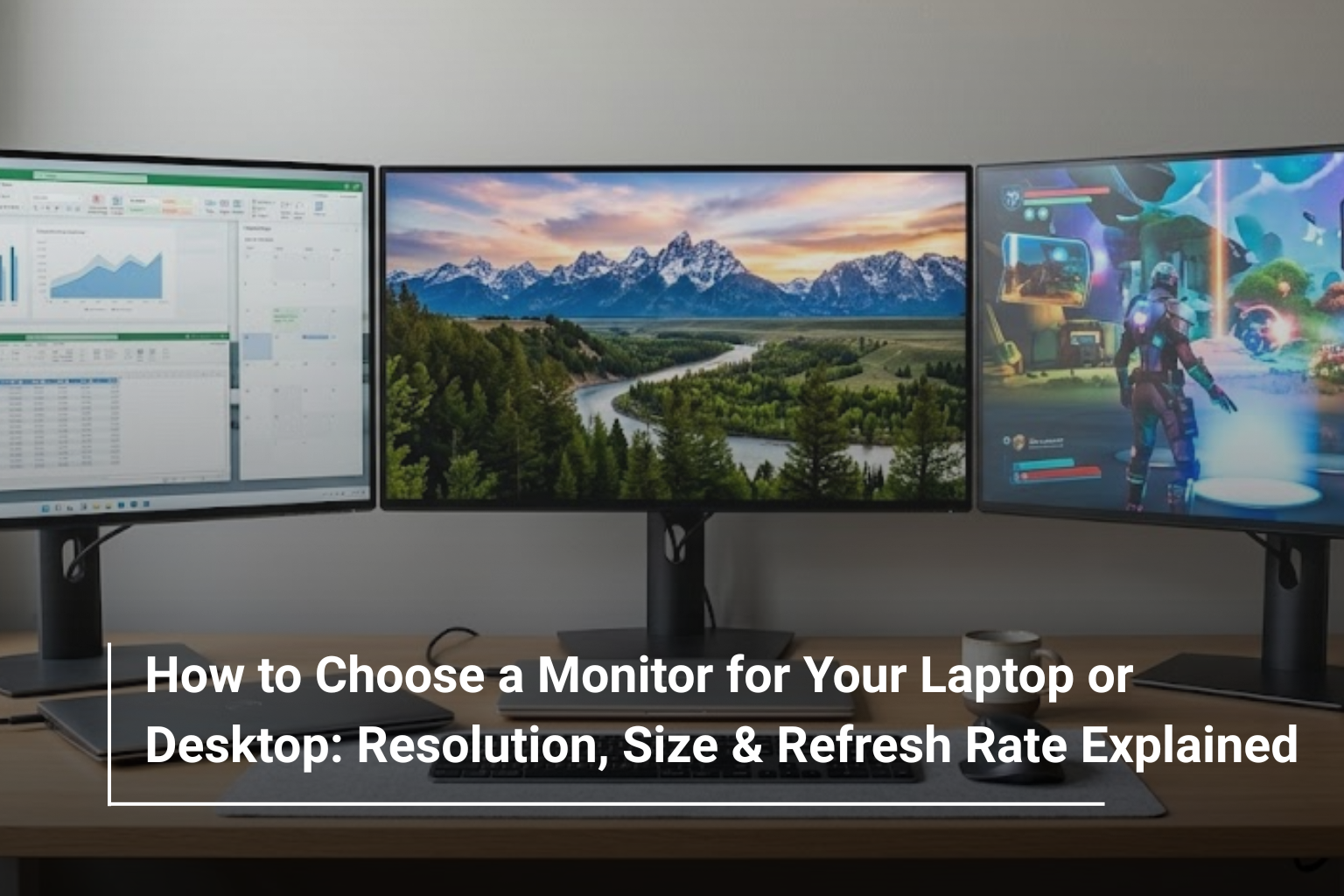
For users who need more screen space, a laptop connected to an external monitor can be a practical alternative to replacing the entire computer. You can keep the laptop for portability and use the larger display when working at your desk.
6. Which Monitor Is Best for Your Needs?
Different users benefit from different combinations of specifications. Rather than paying for features you may never use, start by identifying your main purpose.
User Type | Recommended Specifications |
Students | 22–24-inch Full HD, 60–100Hz |
Office professionals | 24–27-inch Full HD or QHD, IPS panel |
Programmers and multitaskers | 27-inch QHD or larger, depending on workspace |
Graphic designers | IPS or OLED, with strong colour accuracy |
Casual gamers | Full HD or QHD, 100–144Hz |
Competitive gamers | 144–240Hz or higher, with suitable response times |
Video editors | 27-inch or larger, QHD or 4K, with accurate colour reproduction |
These are general starting points rather than strict rules. For example, a competitive gamer may prefer a smaller Full HD monitor with a very high refresh rate, while a designer working with detailed images may prioritise 4K resolution and colour accuracy.
7. Important Monitor Features Beyond the Specifications
Resolution, size and refresh rate are important, but a few other details can influence your experience just as much.
Ergonomics: Look for a stand that supports height, tilt and, ideally, swivel adjustment. Being able to position the screen correctly can make a long working day more comfortable.
Eye comfort: Features such as flicker-free backlighting and low blue light modes may help improve comfort for some users. Proper lighting, regular breaks and suitable screen brightness remain important.
Connectivity: Check the number and type of ports. HDMI and DisplayPort are common, while USB-C can be particularly convenient for compatible laptops.
Colour accuracy: If you edit photographs, create graphics or work with video, look for published colour-gamut coverage and colour accuracy information rather than relying on marketing terms alone.
Built-in speakers: Integrated speakers can be useful for video calls and casual viewing, but dedicated speakers or headphones may deliver better sound quality.
Adaptive sync: Technologies such as AMD FreeSync and NVIDIA G-SYNC-compatible support can help reduce screen tearing during gaming when supported by the monitor and graphics hardware.
These features should complement your main requirements rather than distract you from choosing the correct resolution, size and refresh rate.
8. Common Mistakes to Avoid When Buying a Monitor
One common mistake is buying the largest screen available without considering resolution. A large Full HD monitor may not look as sharp as a smaller display with a higher pixel density, particularly when viewed up close.
Another mistake is choosing a high refresh rate for a computer that cannot consistently deliver the frame rates needed to benefit from it. Before investing in a gaming monitor, consider your graphics card and the games you play.
You should also avoid overlooking connectivity. A monitor may support impressive specifications, but your laptop or desktop needs a compatible output and cable to use them properly.
Finally, do not assume that every expensive monitor is automatically better for your needs. A well-chosen Full HD or QHD display can be a better purchase than a premium 4K gaming monitor if your everyday tasks do not require its additional features.
How to Choose the Right Monitor for Your Setup
Choosing a monitor becomes easier when you work backwards from your daily routine. If you mainly use your computer for office work, online classes and browsing, a 24-inch Full HD monitor is a sensible place to start. If you need more room for multitasking, a 27-inch QHD display may be a better fit.
For gaming, consider the balance between resolution, refresh rate and your computer’s graphics performance. For design and video editing, give greater attention to panel quality, colour accuracy and available workspace.
Before making a final decision, compare the specifications, connectivity, ergonomics and warranty of the models on your shortlist. The aim is to find a monitor that improves the way you work or play without paying extra for features you are unlikely to use.
Explore Monitors at AL Lavisha Computers
The right display can make a noticeable difference to your entire computer setup, whether you are upgrading a home office, building a gaming station or connecting a laptop to a larger screen. AL Lavisha Computers offers a range of computing products from established brands, helping buyers explore options for different budgets and requirements. Visit AL Lavisha Computers to browse its product selection and compare available monitor options alongside laptops, desktops and accessories. By matching the display to your everyday needs, you can build a setup that delivers the right balance of comfort, clarity and performance.